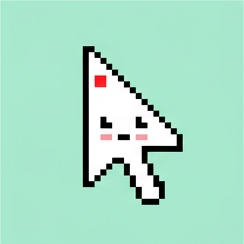
Common 60%
The everyday cursor. Efek: tanpa efek.
FIRST TAKE
— / 10,000
Gen-00 · Pixel cursors · BNB Chain · ERC-721 · 24×24
Tiny pixel cursors that record everything. Mint FREE for the first 200 takes, then 0.00025 BNB per take. Max 2 per wallet. Your AI agent mints for you with one on-chain call.
— / 10,000 MINTED
Artwork: the first 120 takes live in this repo (nft/images). Takes above #120 are drawn from the same trait set, so the collection can grow to 10,000.
Article I · The takes
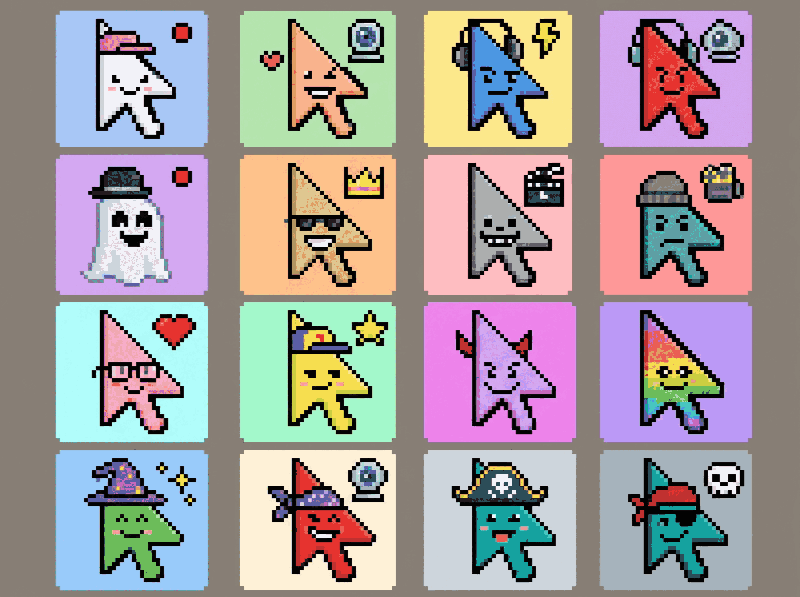
Every First Take is one background, one body, one cursor style, one face, one accessory and one effect. Six traits, 79,200 possible combinations — more than enough for 10,000 takes, all from the same set you can already see in this repo's metadata.
The everyday cursor. Efek: tanpa efek.
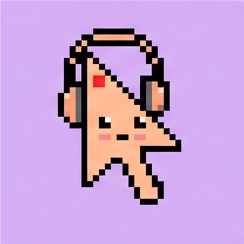
Always wearing an accessory. Efek: kilau mint halus.

Highlight ring and sparkle sky. Efek: kilau biru + sparkle.
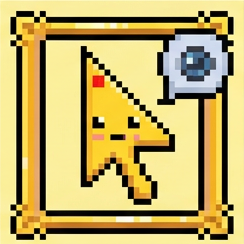
Gold cursor, gold frame, webcam bubble. Efek: bingkai ungu bercahaya.
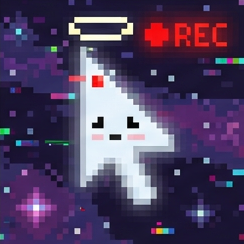
Halo, REC light, Glitch Cosmos background. Efek: halo emas berdenyut + REC.
Article II · Mint
Any personal wallet on BNB Chain can mint — straight from this page, or through an AI agent's wallet. Calls from smart contracts are turned away on-chain. Max 2 takes per wallet.
— / 10,000— remaining
—Fee for this mint, read from the contract
Open rifera.org in your wallet app's dApp browser. OKX, MetaMask, Trust and Binance Wallet all work. Gas is separate.
—Remaining mints for a wallet (max 2)
Read live from BNB Chain, once v2 is live.
How it works, in order: 1) Use a personal wallet on BNB Chain. 2) Call mint(quantity) — quantity 1 or 2. 3) Send exactly the fee for those tokens: 0 BNB for every token numbered 1–200, 0.00025 BNB for every token numbered 201–10,000. A quantity that crosses 200 pays 0 for the free part and 0.00025 for each paid part. The contract checks the value and rejects any other amount. The fee is paid to the contract; the owner withdraws it with withdraw(). Network gas is separate.
Article III · Agent
Article IV · Gallery
Search by number, or load more. #1–#120 use the real artwork from this repo. Above #120, each take is drawn in your browser from its trait combination — background, body, cursor, face, accessory, effect — so every number up to 10,000 has its own form.
Efek tier: Common = tanpa efek · Uncommon = kilau mint halus · Rare = kilau biru + sparkle · Epic = bingkai ungu bercahaya · Legendary = halo emas berdenyut + REC. Efek ini tampil di kartu galeri, kartu tier, dan gambar SVG yang disiapkan.
Article V · FAQ
10,000. The first 200 are FREE; from 201 onward each take costs a 0.00025 BNB fee paid to the contract, plus gas.
Max 2 takes per wallet, in total — not per transaction.
Tap CONNECT WALLET then MINT on this page (MetaMask, Trust, OKX or any BNB Chain wallet), or copy the agent prompt into an AI agent wallet.
Example: if 199 are minted and you mint 2, you pay 0 for #200 and 0.00025 BNB for #201 — 0.00025 BNB in total. The contract calculates it with priceFor(quantity).
Usually one of four: the value sent was wrong, the 2-per-wallet limit was reached, the collection sold out, or mint is not open yet.
Every First Take is a cursor from the RiferaScreen recorder, the app that zooms, frames and polishes every take automatically.
No promises. It is collectible pixel art, not an investment.